Change requests
A change request lets you change secrets in an environment you don't have write access to. A typical case: a developer with access to dev needs a new variable in prod for a release. They propose the change, and a prod editor reviews it, approves it, and applies it.
Available only with a subscription.
Requests work only in the dashboard. You can't create or approve them through the API, CLI, or service keys: approval has to come from a person, not from a leaked key or a script.
Environment editors can still edit secrets directly. Requests and policies don't forbid direct edits; they add a path for those who don't have write access.
Who can do what
| Action | Who can |
|---|---|
| Create a request | any project member, even without access to the target environment |
| See values in a request | a member with access to the environment, or the author of the value |
| Approve and apply | an environment editor: a member with write access to it, as well as team admins and owners |
| Configure approval policies | team admins and owners |
Members' permissions for environments are set in team roles.
How to propose a change
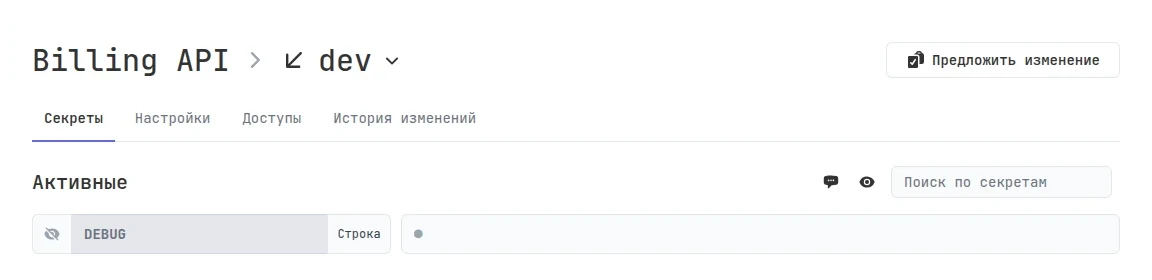
Open a configuration. If you don't have write access to it, you'll see Propose change instead of the Save button.
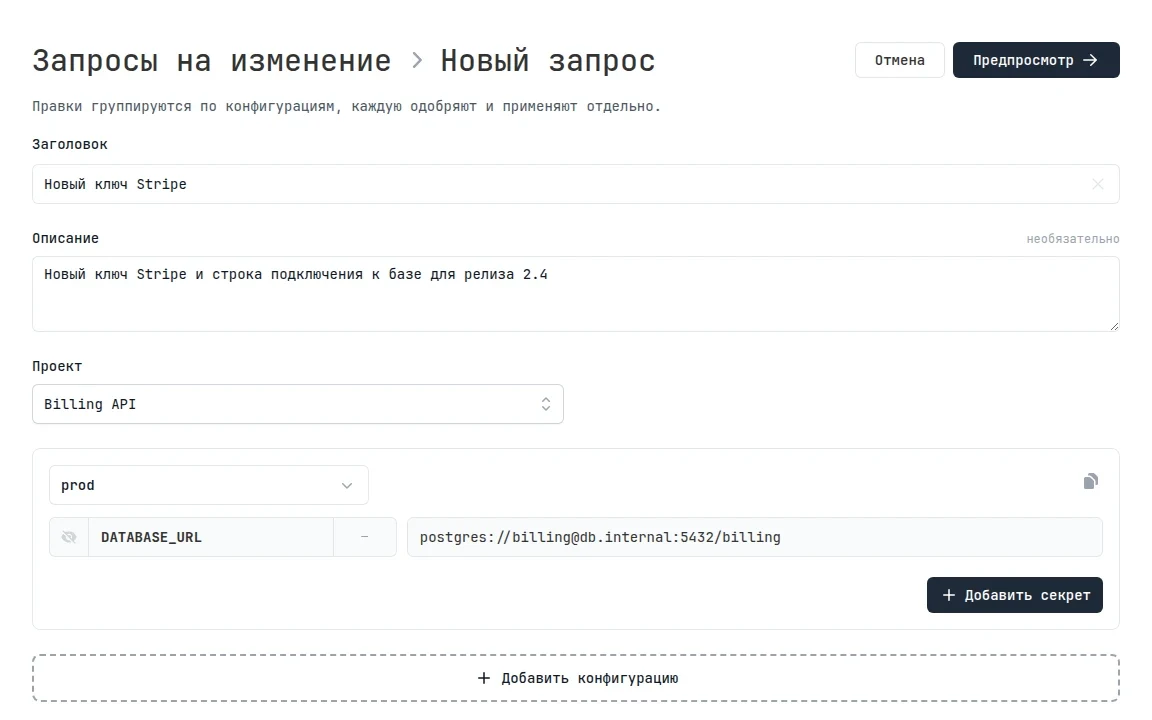
You put the request together in a form:
- Enter a title and, optionally, a description of why the change is needed.
- Select a project and a configuration. Environments you don't have access to are marked with a lock: you can change secrets in them, but you won't see the current values or secret names.
- Add or change secrets. Each configuration is a separate block that is approved and applied separately. To change secrets in several environments, click Add configuration.
- Click Preview: it shows what will change, and you can pick reviewers there. Without reviewers, the request waits for everyone who can approve it.
- Click Submit for review.
A request can't change secrets with restricted visibility or set that visibility.
Reviewers get an email. It contains the request title, the project, the configurations, and the secret names, but no values.
Review and apply
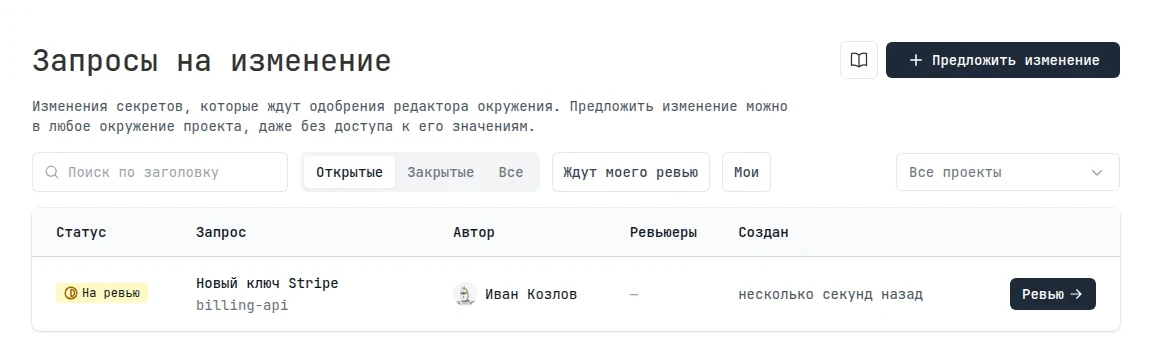
Requests waiting for your review show up on the dashboard home page in the Needs attention block and in Secrets → Change requests with the Awaiting my review filter.
On the request page, each block shows its diff and approvals. Values are hidden: click the eye icon to see them. An environment editor sees both the old values and the new ones.
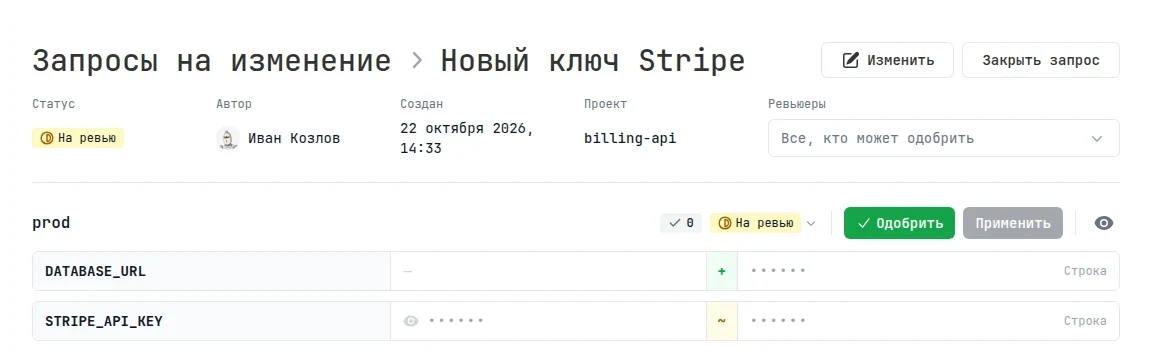
- Click Approve. Changed your mind? Click Withdraw approval.
- Once the block is approved, click Apply and confirm. The new values are written to the configuration right away, and an entry with a link to the request appears in the change history.
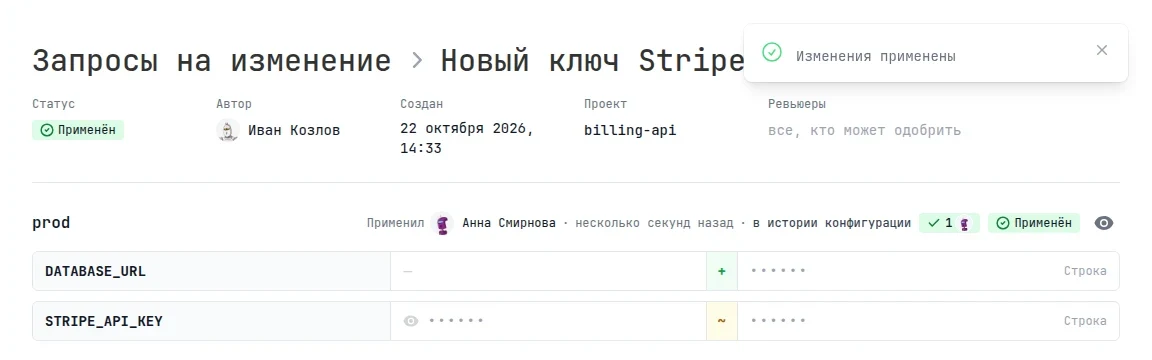
The author gets an email when the changes are applied or the request is closed.
If you no longer need the request, click Close request. The author and reviewers can edit the request while it's open, but editing a block resets its approvals and the review starts over.
Statuses
| Status | Meaning |
|---|---|
| Draft | the request is saved but not submitted for review |
| In review | waiting for approval |
| Approved | there are enough approvals, the changes can be applied |
| Applied | the changes are written to the configuration |
| Partially applied | some blocks are applied, the rest are canceled |
| Canceled | the request was closed without being applied |
If a secret was changed directly
Changes are applied strictly. If someone changed the same secret directly after the request was created, the block is marked Outdated and can't be applied: otherwise the request would silently overwrite someone else's edit. Click refresh to rebuild the block from the current values. This resets the approvals.
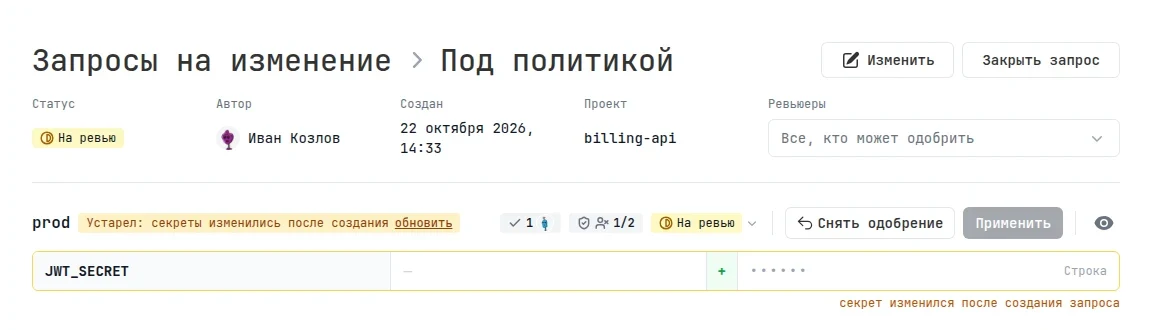
A configuration with an open request shows a banner with a link to it, so editors can see that changes are already waiting for review.
Approval policies
By default, a block can be applied after one approval from an environment editor. Approval policies set stricter rules, for example two approvals for prod and a ban on approving your own request. Team admins and owners manage policies in Secrets → Approval policies.
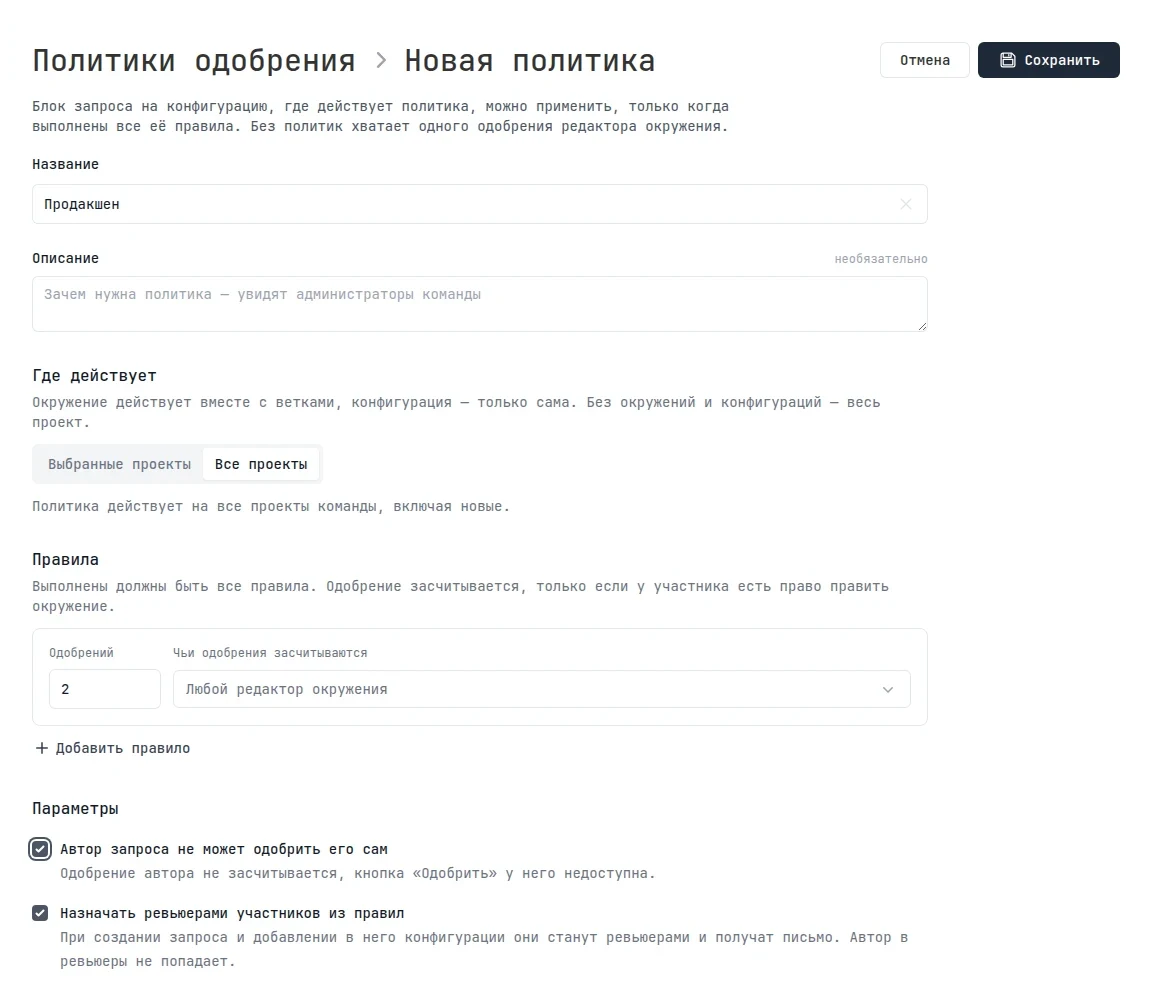
A policy defines:
- Scope — all team projects, including new ones, or selected projects. Within a project, you can limit the policy to environments (together with their child configurations) or to individual configurations.
- Rules — how many approvals are needed, from 1 to 20, and whose approvals count: any environment editor or selected members. An approval counts only if the member has write access to the environment. All rules of the policy must be met.
- The request author can't approve it — the author's approval doesn't count, and the Approve button is unavailable to them.
- Assign members from the rules as reviewers — when a request is created, they become reviewers and get an email.
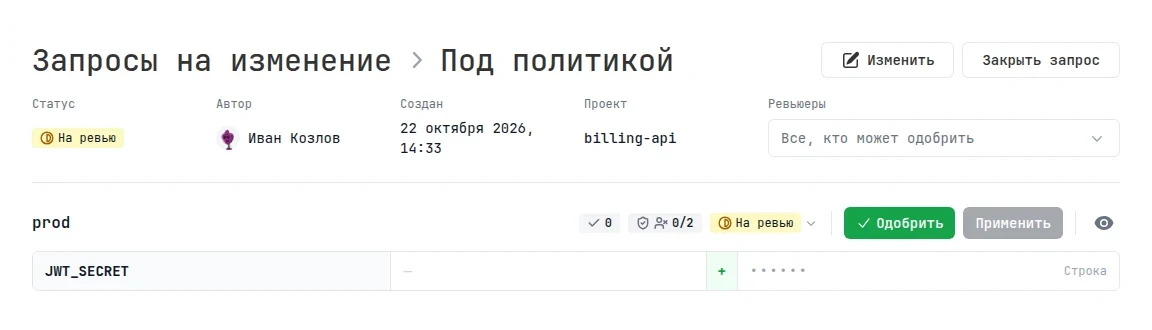
If several policies apply to a configuration, all of them must be met. A block under a policy gets a progress badge, for example 0/2, and the Apply button becomes available once all rules are met.
How long requests are kept
Closed and applied requests are kept as long as the configuration change history on your plan. Open requests aren't deleted. If you delete a configuration or an environment, its blocks disappear from requests. If you delete a project, its requests are deleted too.