# Reports
[Go to personal account](https://my.tuna.am/reports)
Functionality for collecting errors and creating comprehensive reports on your website.
***
## Overview
Using an embeddable script, users and QA engineers can easily show where the bug is hiding, and you can get debug information and immediately start fixing it.
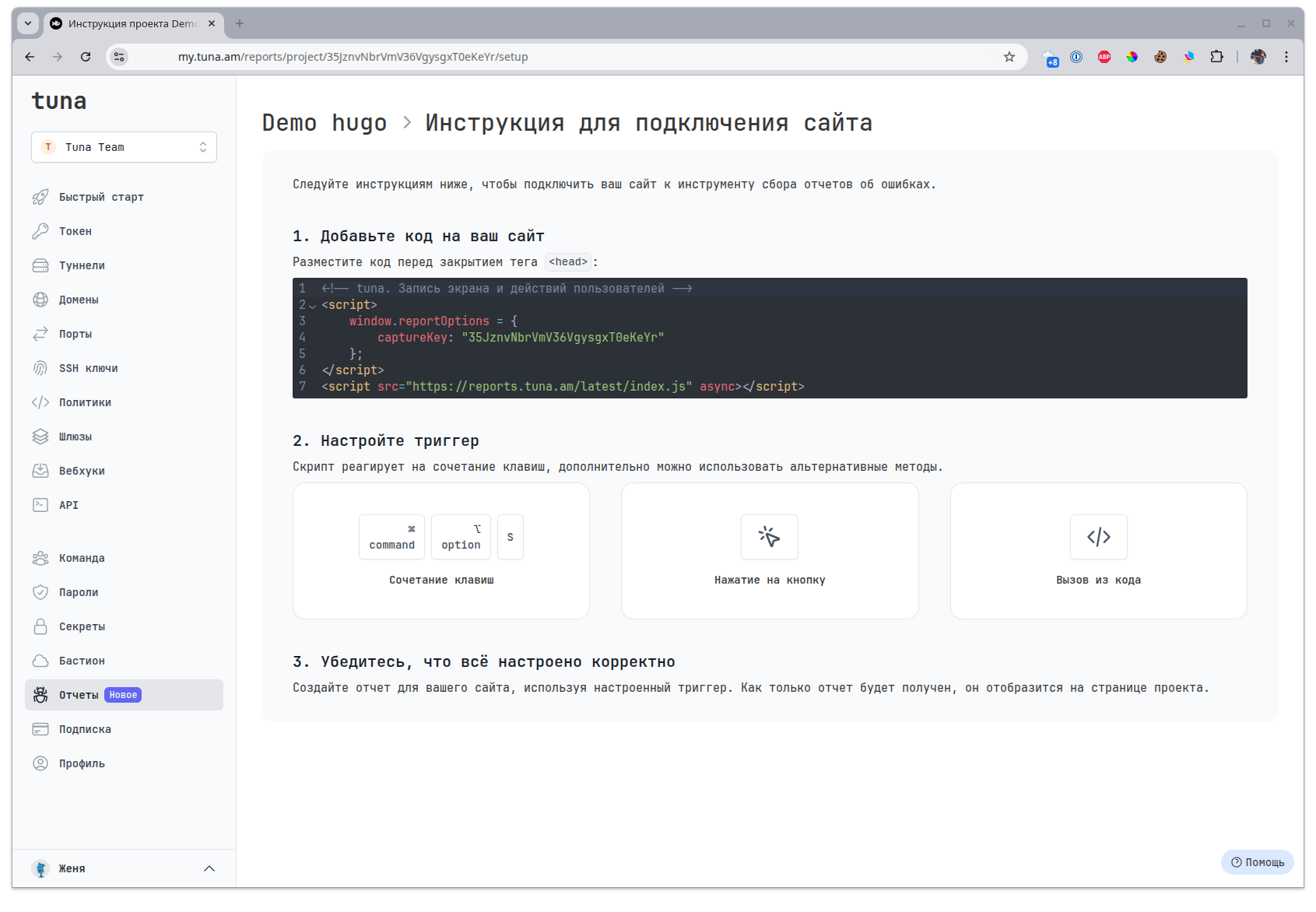
To do this, create a project and connect the script to your site.
## Service structure
Inside the **Reports** service there are **Projects**, it is assumed that you create a separate project for each of your sites. Projects are separated by a unique `captureKey`. Inside projects, reports you create with screenshots and video recordings will appear.
## Installation
Place the code on the HTML page before the closing `` tag:
```html
```
Replace **YOUR_CAPTURE_KEY** with yours from the desired project.
## Script options
Options are set in the `window.reportOptions` object before the script is loaded.
| Option | Type | Default | Description |
| -------------------- | ---------- | ------- | ----------------------------------------------------------------------------------------------------------------------------------------------------------------------- |
| `captureKey` | `string` | — | Project key. Required. |
| `video` | `boolean` | `true` | Video recording. See [below](#video). |
| `sensitiveUrlParams` | `string[]` | `[]` | Additional URL parameters whose values are masked. See [Data privacy](https://tuna.am/en/docs/reports/privacyOptions.md#adding-your-own-parameters-sensitiveurlparams). |
| `sensitiveHeaders` | `string[]` | `[]` | Additional HTTP headers whose values are masked. See [Data privacy](https://tuna.am/en/docs/reports/privacyOptions.md#adding-your-own-headers-sensitiveheaders). |
### Video recording
By default the user chooses what to attach to a report: a screenshot or a screen recording. The recording is kept in the page's memory, so on multi-page sites it is cut off when the user navigates to another page. For such sites video can be turned off:
```html
```
Only an explicit `video: false` turns video off. Without the option, or with any other value, recording stays enabled.
With `video: false` the capture type dialog is not shown: a [button](#button-click), a [hotkey](#hotkeys) or a `showCaptureModal()` call from a click handler takes a screenshot right away.
> **Exception: a link with ?report=true.** With the [URL argument](#url-argument) the dialog opens without a user action, and without one the browser will not start screen capture. So in this case a dialog with a single **Screenshot** card is shown.
In your personal account, the project setup page has a **Video recording** checkbox — it changes the `video` value in the snippet you copy to your site.
## Calling the script to create a report
There are several ways to create a report:
* Hotkeys
* Button (data attribute)
* Call from code (JS)
* URL argument
### Hotkeys
**Windows**
> **Use the key combination.** `CTRL` + `ALT` + `S`
**macOS**
> **Use the key combination.** `⌘ command` + `⌥ option` + `S`
**Linux**
> **Use the key combination.** `CTRL` + `ALT` + `S`
### Button click
Call the report creation form by adding a button with a data attribute:
```html
```
### Call from code
Call the report creation form from your code by adding the command:
```js
if (typeof window.autoCapture !== 'undefined'
&& window.autoCapture.showCaptureModal) {
window.autoCapture.showCaptureModal();
}
```
### URL argument
Call the report creation form by adding the argument `report=true` to the URL in the address bar.
```url
https://example.com/dashboard?report=true
```
## User identification
If the user is signed in on your site, pass their data to the script — the report will be linked to that user. The data is stored in the report as the reporter and is shown in the **Context** block on the report page.
```js
if (window.autoCapture && window.autoCapture.capture) {
window.autoCapture.capture.identify({
identifier: "user-42",
name: "John Smith",
email: "john@example.com",
avatarUrl: "https://example.com/avatar.png"
});
}
```
All fields are optional.
| Field | Description |
| ------------ | -------------------------------------------------------------------------------------------------------- |
| `identifier` | User identifier in your system |
| `name` | Name |
| `email` | Email address. It is subscribed to notifications about the report, see [Reporter email](#reporter-email) |
| `avatarUrl` | Avatar URL |
To reset the data, for example on sign-out, pass `null`:
```js
window.autoCapture.capture.identify(null);
```
> **Call it after the script is initialized.** The script is loaded with the `async` attribute, and `window.autoCapture.capture` is `null` until it is initialized. Check it before the call, as in the example above, otherwise you will get an error.
## Reporter email
The report form has an optional email field. The address entered there:
* receives a "Your report has been received" email with a link to the report;
* is subscribed to new comments on the report, the email contains an unsubscribe link;
* is granted access to the report.
A public report opens from the link in the email right away. To open a private one, click **Request a link** — a one-time sign-in link will be sent to the address.
The field always opens empty. If you pass an address through [`identify()`](#identify):
* a filled-in field takes priority — its address is used;
* with an empty field, the address from `identify()` is used.
The reporter's email is visible only to members of the project team. It is not shown via a public link to the report.
An invalid address passed through `identify()` does not block submission: the report is accepted, but no email is sent and no subscription is created.
## Request to create a report with screen recording
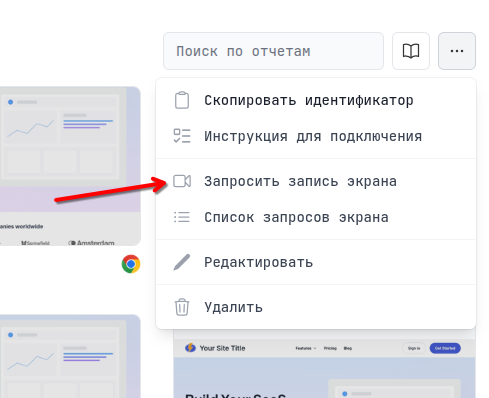
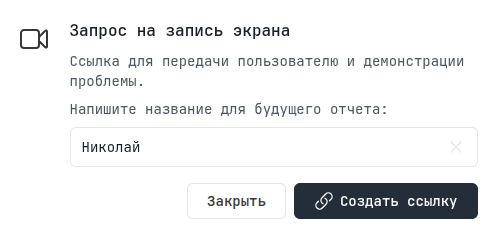
If you want the user to record a report for you not from the site, but to demonstrate the problem on their workstation, then you can create a link with a request for screen recording.
***
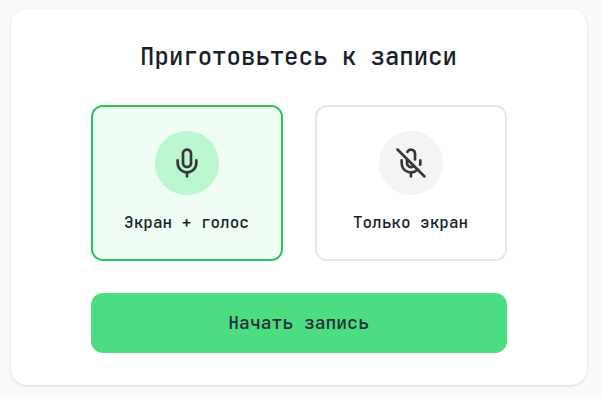
By following the link, the user will be able to record a video for you and tell you about the problem.
## What does a report look like?
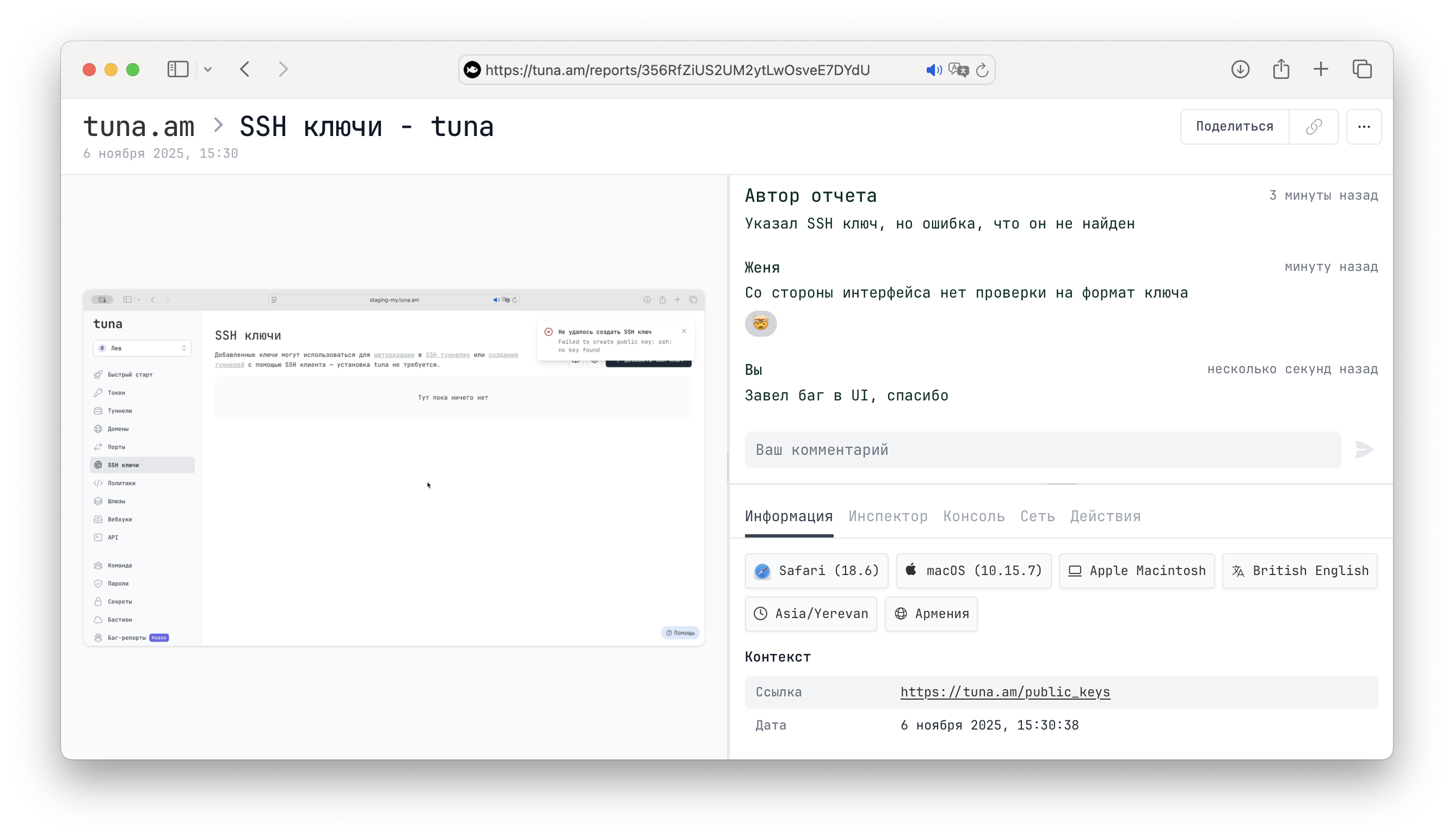
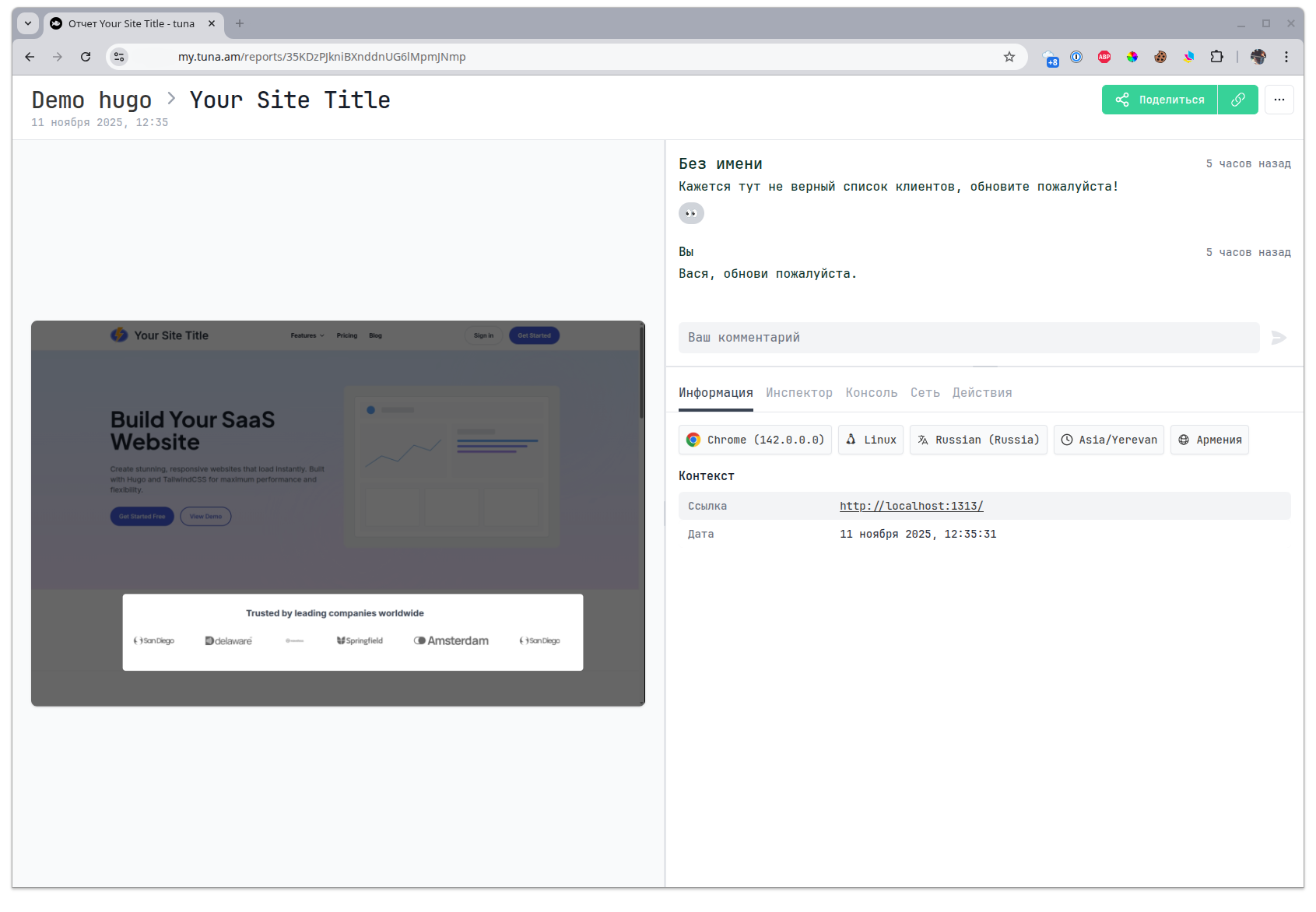
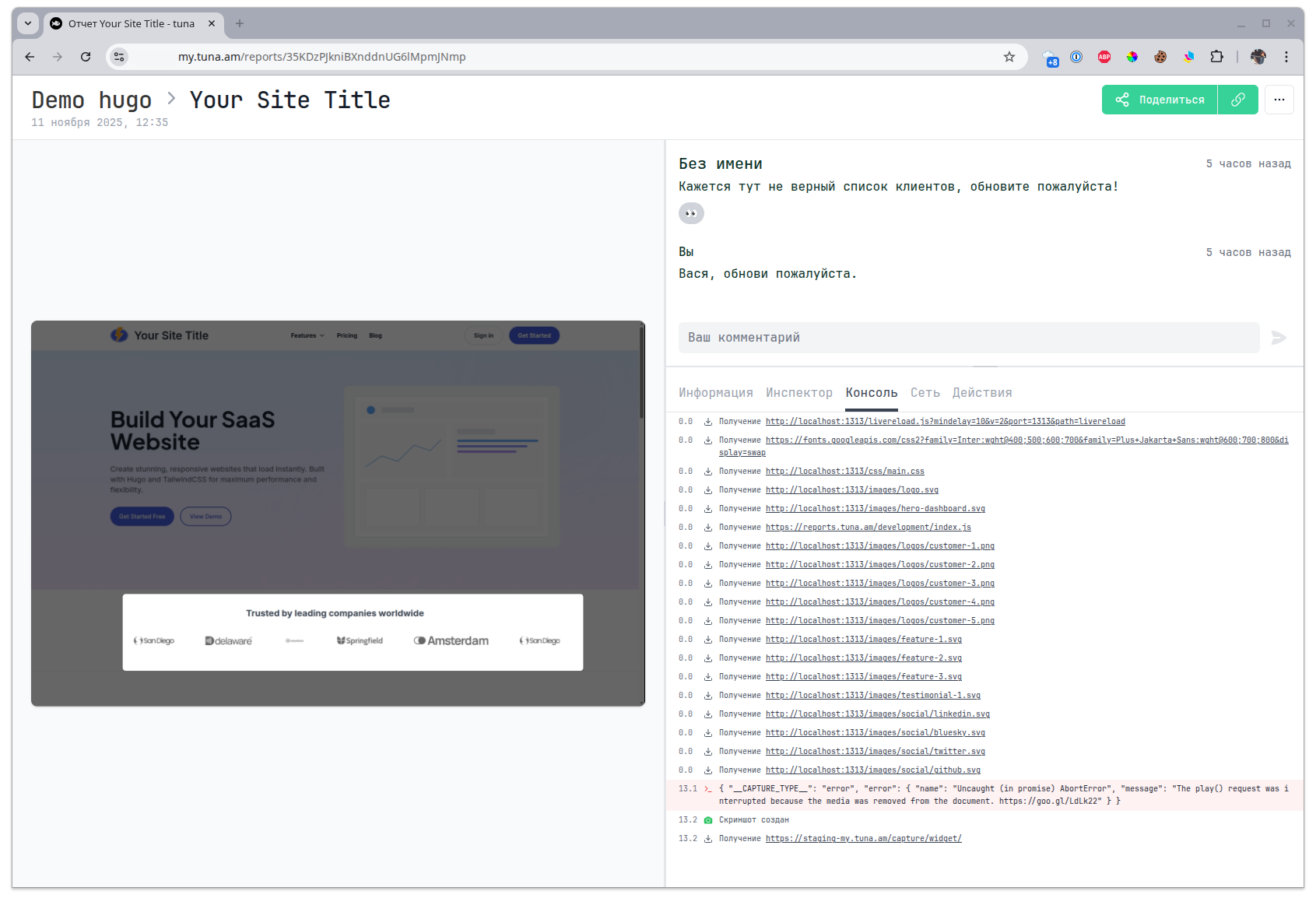
Inside the report you will find a screenshot or video and all the debugging information from the console, network operations, user actions and a snapshot of the page DOM tree.
**Info**
The first tab contains general summary information about the client, device and browser.
**Inspector**
A snapshot of the page DOM tree, with the ability to select an element.
***
> **Note.** This tab is only available for reports with a screenshot. Reports with video cannot capture a DOM tree snapshot since it can change over time.
**Console**
A list of all events from the browser console.
**Network**
A list of all XHR requests with the option to look into the details.
**Actions**
User actions on the page.
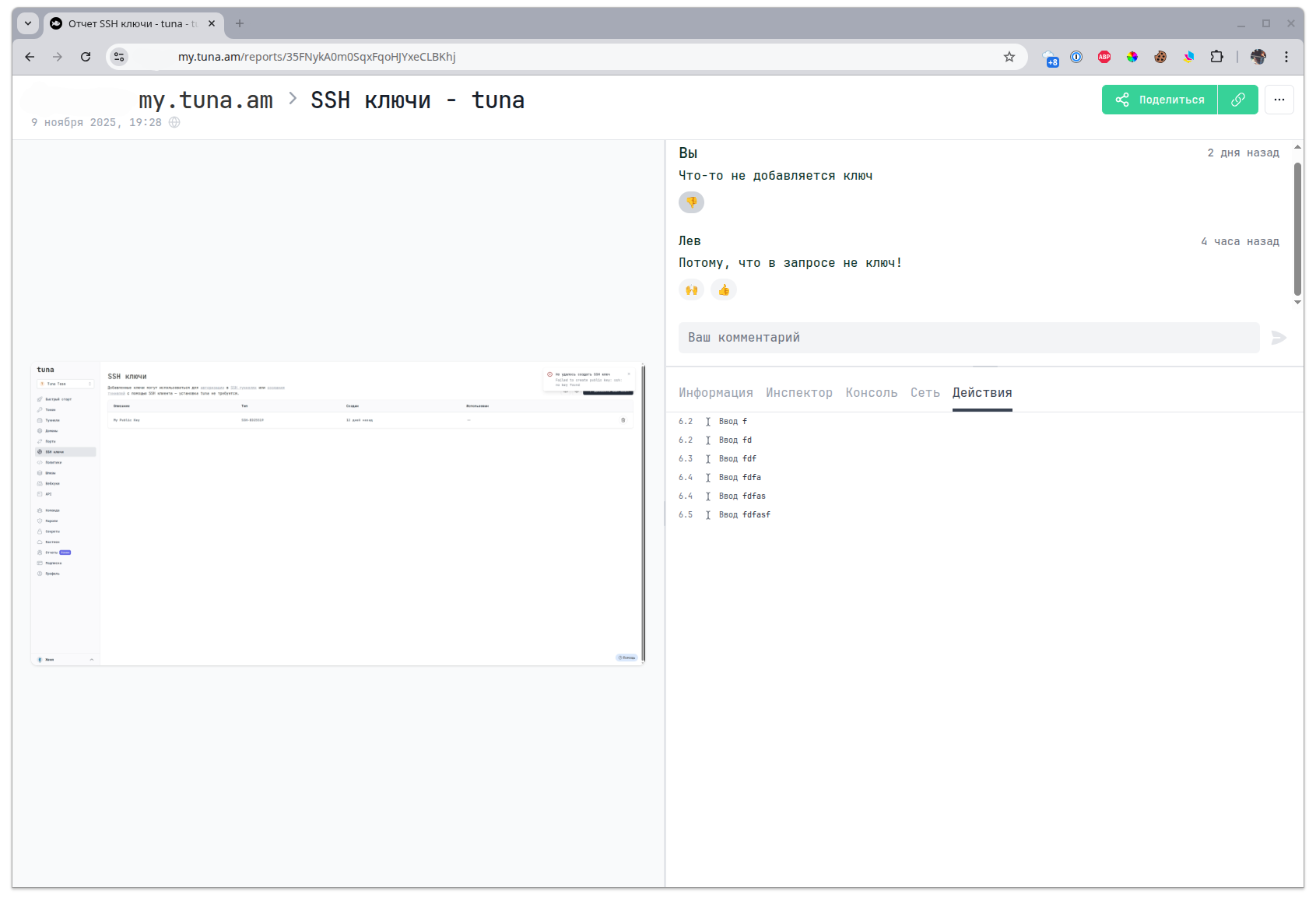
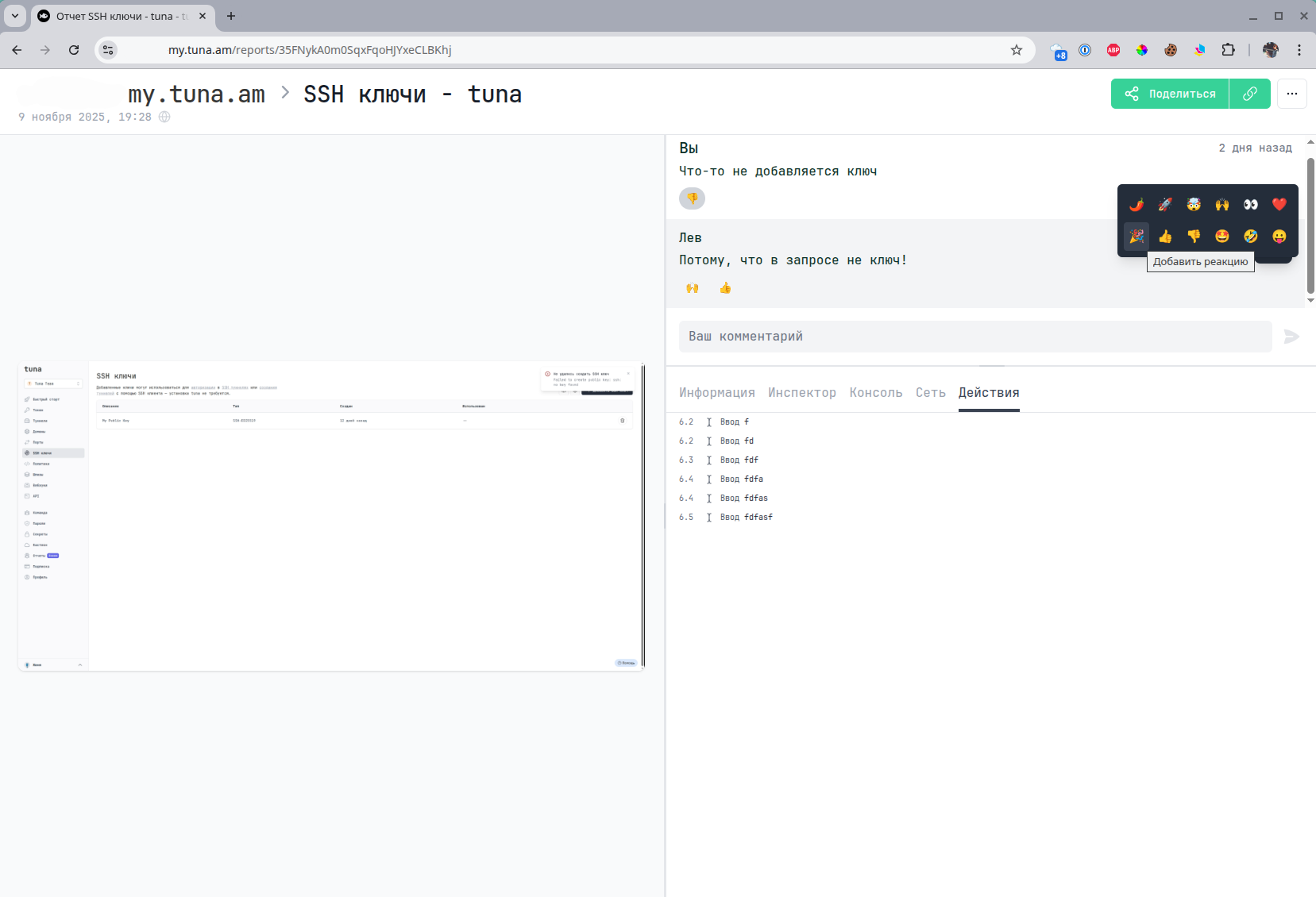
**Comments**
You can also leave comments and reactions to comments.
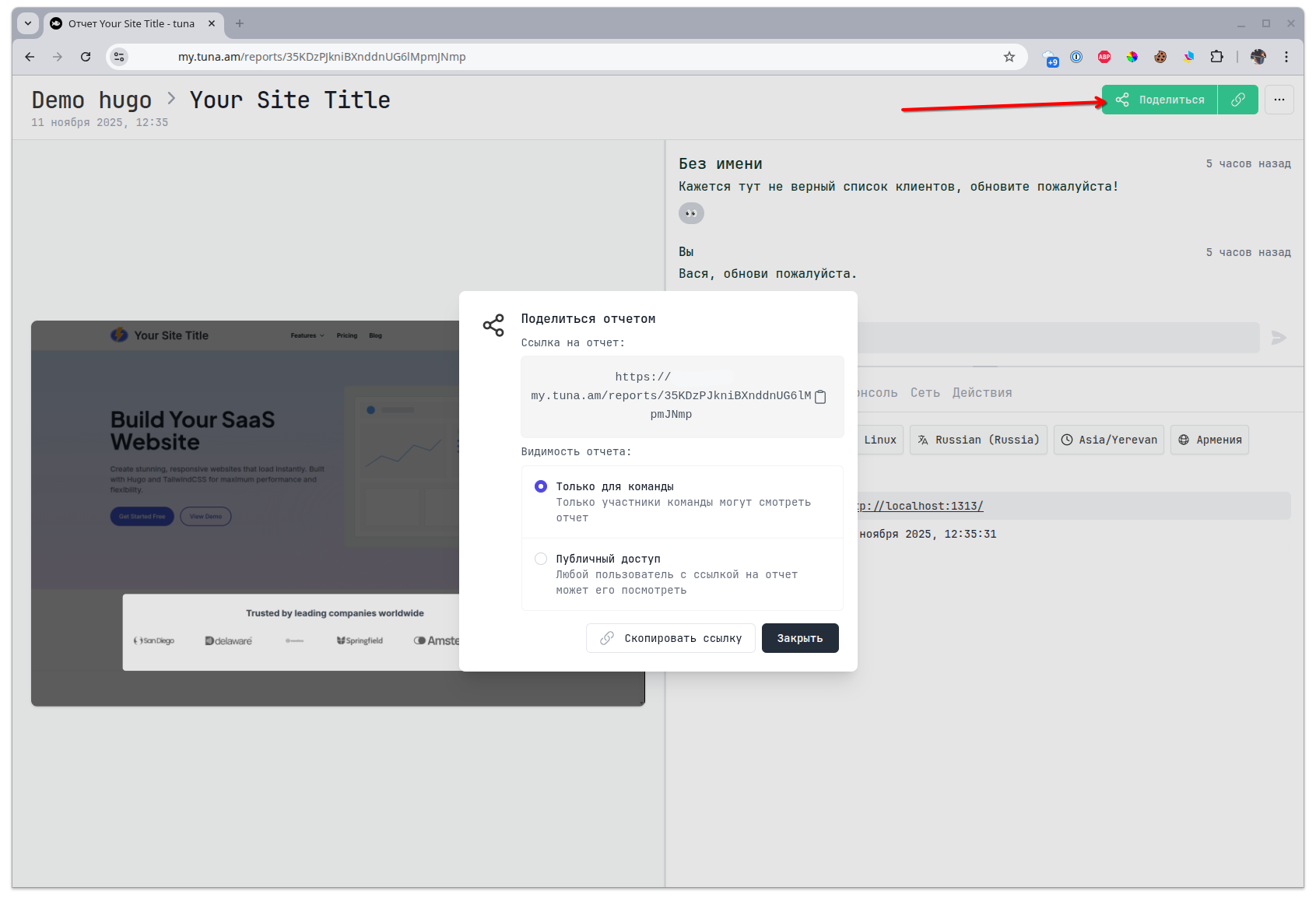
## Report visibility
By default, a report is created with visibility - **For team members only**, but you can make it public. For example, to conduct a dialogue with a client who created a report.