Exit nodes and subnets
A device in mesh can pass access further on, to the internet or to a local network.
- An exit node routes the internet traffic of other devices through itself. With it, you can go online from the IP address of an office or a server in a specific country.
- Subnets open access to the local network behind a device: office printers, NAS, and servers. You don't need to install the client on every host.
Devices on Linux and macOS can share them on the Pro and Legend plans. Any device on any plan and OS can use exit nodes and subnets if the device owner has granted access.
How to share an exit node
On the device that will carry the traffic, run:
tuna mesh up --advertise-exit-node
The exit node appears right away in Mesh → Exit nodes with the Full type. The tunad service enables packet forwarding and NAT itself. If Docker, firewalld, or ufw blocks forwarding, tunad tries to allow it, and if it can't, it warns you in the tuna mesh status output.
How to share subnets
List the subnets separated by commas:
tuna mesh up --advertise-routes=192.168.10.0/24,10.20.0.0/16
The subnets must not overlap with mesh addresses. You can't share the whole internet (0.0.0.0/0) this way; that's what --advertise-exit-node is for. Hosts on the local network see connections coming from the sharing device's address, so you don't need to add a return route on them.
Other devices pick up the subnets automatically, no flags needed. Check the Subnet routes line in the tuna mesh status output, and then reach the hosts by their local addresses:
ssh admin@192.168.10.15
Pass the --advertise-* flags every time you run tuna mesh up. Running it without them, just like tuna mesh down, withdraws the advertised exit node and subnets.
Who can use them
The device owner controls access to the exit node and subnets in Mesh → Exit nodes → Permissions. Your own devices can always use them.
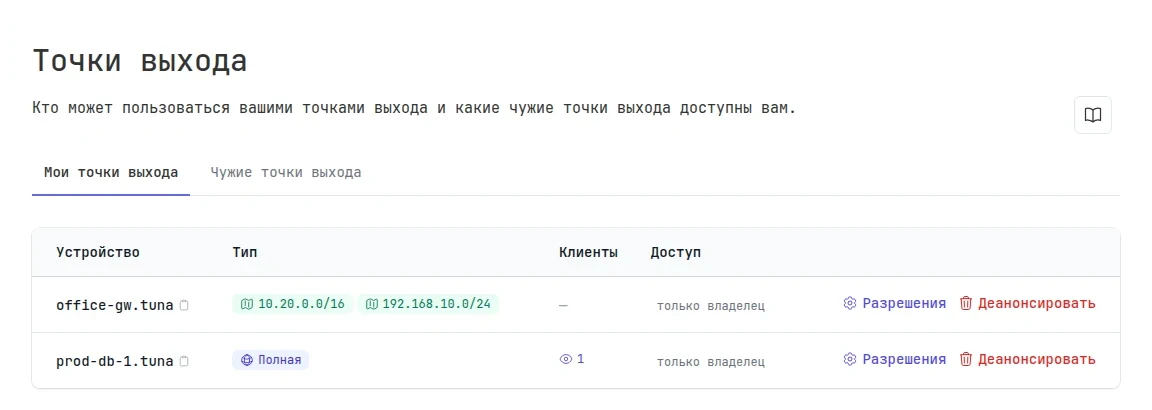
Others get access like this:
- Allow the whole team — any team device can use it;
- Allow for a specific device — an individual permission;
- Deny for a specific device — the denial applies even when Allow the whole team is on.
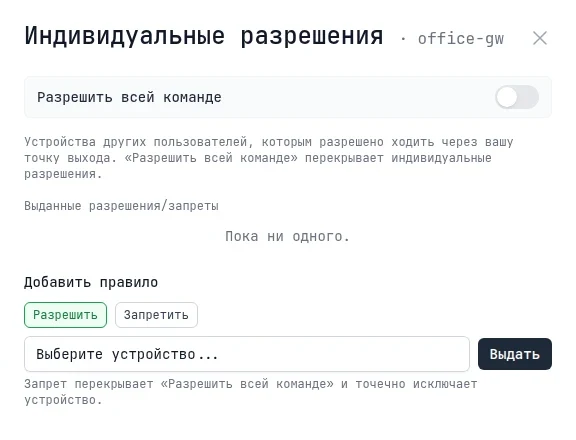
The Withdraw button removes the exit node or subnets from the device. A team admin can't grant permissions on the owner's behalf but can forcibly withdraw an exit node or subnet in Team → Exit nodes.
Other members' exit nodes that you have access to are collected on the Others' exit nodes tab.
How to go out through an exit node
Specify the device when you bring the network up:
tuna mesh up --exit-node=prod-db-1
You can use the device name, the name with .tuna, or its Mesh IP. If you don't have access, the CLI responds with exit-node access not granted by owner. The local network you're on still works directly.
You don't have to route all traffic through the exit node:
| Flag | What it does |
|---|---|
--exit-node-country-include=ru | only traffic to one country goes through the exit node |
--exit-node-country-exclude=ru | traffic to one country goes directly, the rest goes through the exit node |
--exit-node-routes-include=<CIDR,...> | additional subnets through the exit node |
--exit-node-routes-exclude=<CIDR,...> | subnets that go directly |
--fallback-to-direct | if the exit node is unavailable for longer than the grace period, traffic goes directly and then switches back on its own |
--fallback-to-direct-grace=60s | the grace period before switching to a direct connection, from 10 seconds to 10 minutes |
The country flags take a single country code and work only together with --exit-node. You can't set both of them at once. tuna mesh countries lists the codes.
tuna mesh up --exit-node=prod-db-1 --exit-node-country-exclude=ru --fallback-to-direct
Access rules also apply to traffic through an exit node: a rule that denies a subnet closes it through the exit node too.